Catalog
The Catalog is a shared hub where educators and students discover, publish, and organize scientific models, notebooks, educational videos, data sets, and animated characters.
Navigation
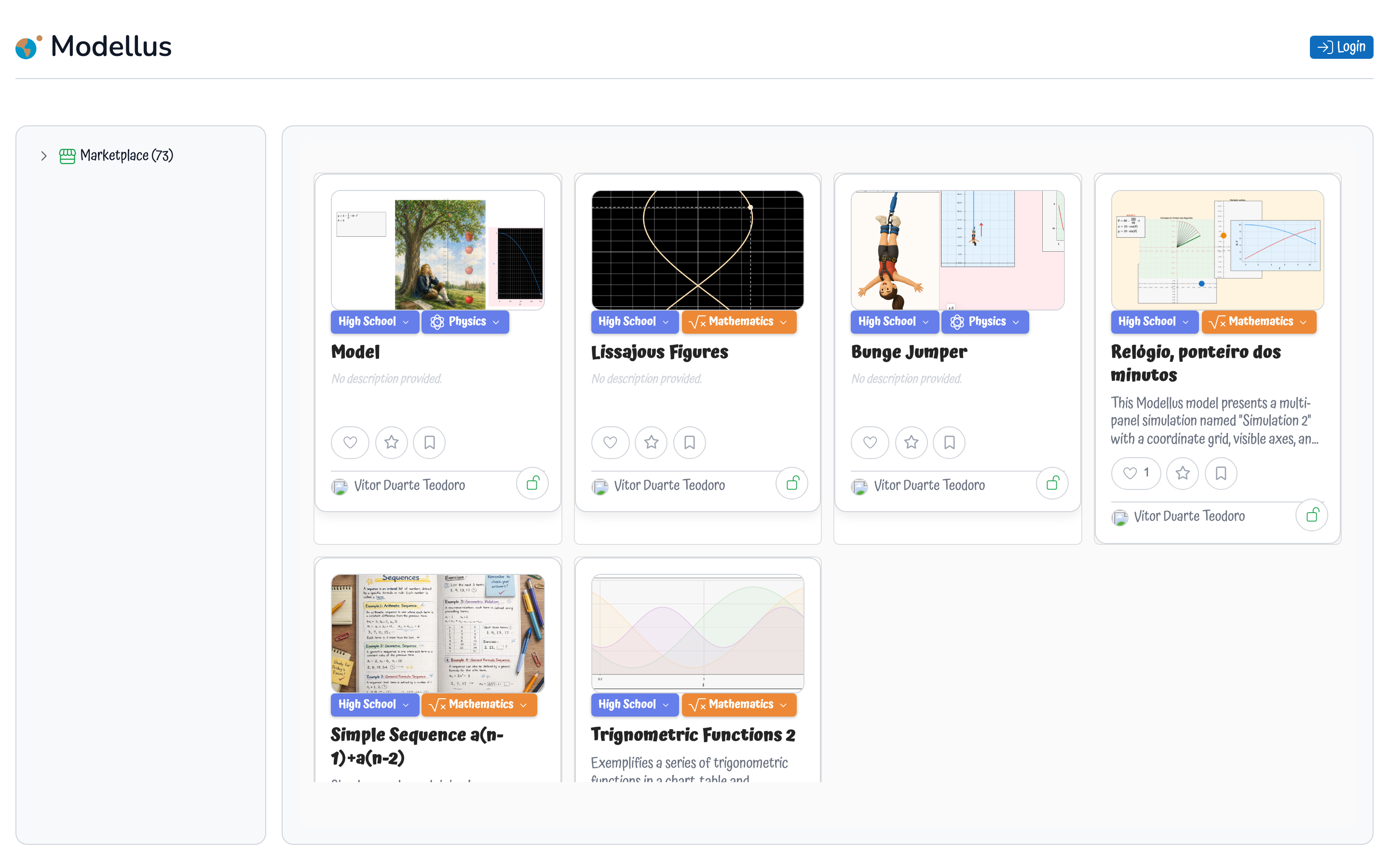
The left sidebar organizes content into personal and public sections via a tree view:
Personal Workspace
| Section | Description |
|---|---|
| My Models | All models you have created, including drafts and published ones |
| Personal | Private models visible only to you |
| Published | Models you have made public in the Catalog |
| Drafts | Work-in-progress models not yet published |
| Favorites | Models you have starred for quick access |
| Library | Public models you have picked/saved for personal use |
| Deleted | Soft-deleted models that can be recovered |
Public Catalog
| Section | Description |
|---|---|
| Models | Browse all publicly shared scientific models |
| Videos | Educational video content uploaded by the community |
| Data Sets | CSV/JSON data files for model–data comparison |
| Characters | Animated sprite assets for use in Body shapes |
Within Models, Videos, and Data Sets, content can be filtered by Education Level and Science categories using the tree sub-nodes.
Creating a Model or Notebook
Click Create Model to start a new blank board model, or Create Notebook to start a document-style Notebook. Each opens in its own editor. Once saved, it appears in your Personal section.
Cards show which kind of model they hold: for boards and for notebooks. Opening a card launches the matching editor.
Publishing
To share a model with the community:
- Open the model card's context menu or the edit popup
- Set the visibility to Public
- The model immediately becomes discoverable in the public Catalog
You can revert a model to Private at any time to remove it from public listings.
Model Cards
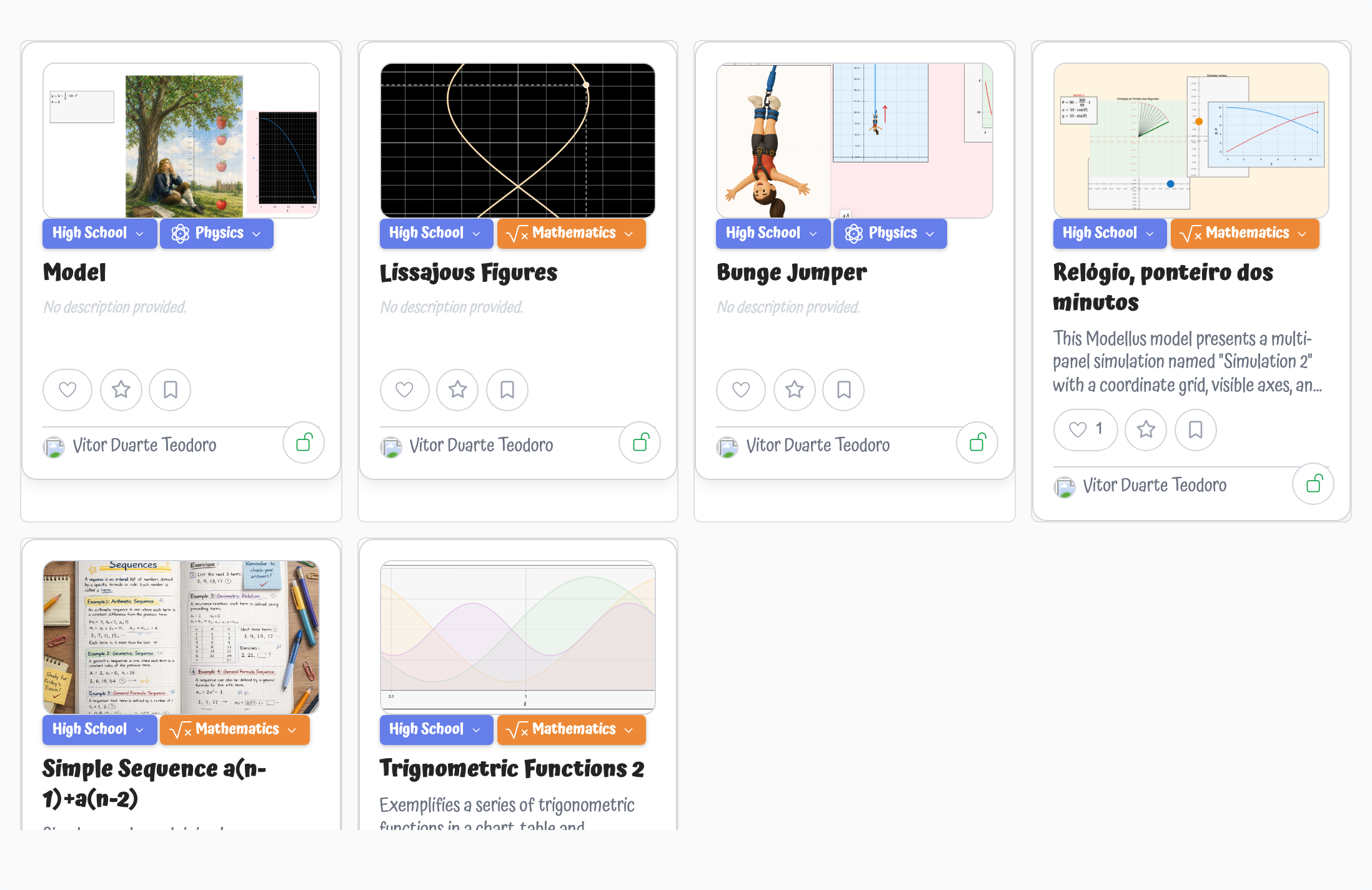
Each model in the Catalog is displayed as a card tile showing:
- A 16:9 thumbnail preview (auto-generated or custom-uploaded)
- The model title and description
- Education level and science category pills
- Like count and creator information
- Status badges over the thumbnail: for private models and for samples
Card Actions
The card itself keeps only the social actions. Everything else lives in the menu in the card's top-right corner, so the tile stays readable no matter how many actions you have access to.
| Action | Where | Description |
|---|---|---|
| Like | Card | Toggle the like heart on a model to show appreciation |
| Favorite | Card | Star a model to add it to your Favorites section |
| Pick | Card | Save a public model to your personal Library |
| Open | Card / menu | Double-click the card, or use the menu, to open the model in the editor |
| Open in new tab | Menu | Open the model in a separate browser tab |
| Copy link | Menu | Copy a direct link to the model to the clipboard, ready to share |
| Edit | Menu | Open the metadata popup to change title, description, or thumbnail |
| Make public / private | Menu | Publish the model to the Catalog or take it back to private |
| Set as sample | Menu | Flag the model as a sample (maintainers only) |
| Delete | Menu | Move the model to the Deleted bin (recoverable). Only the owner and maintenance users can delete a model |
| Recover | Menu | Restore a model from the Deleted bin (owner and maintenance users only) |
Sharing a Link
Use Copy link to get a direct URL to a model — for example https://<host>/pages/board/index.html?model_id=123. The link points at the right editor for the model kind (board or notebook). Anyone opening it will need access to the model, so publish it first if you are sharing outside your account.
Editing Model Metadata
The edit popup allows you to modify:
- Title — A descriptive name for the model
- Description — A brief explanation of the scientific concept
- Thumbnail — Upload a custom preview image
- Education Level — Select from available levels (e.g., Elementary, Secondary, University)
- Science — Categorize by subject (e.g., Physics, Chemistry, Biology, Mathematics)
Social Features
| Feature | Description |
|---|---|
| Likes | Show appreciation for a model; like count is displayed on the card |
| Favorites | Quick-access bookmarks in your personal sidebar |
| Library | Pick public models to study and reference later |
| Notifications | Receive updates when others interact with your models |
User Profile
Access your profile from the user menu in the top-right corner. The profile lets you configure:
- Display name — Your public name shown on model cards
- Country — Your location for community context
- Language — Interface language (English or Portuguese)
Recovering Deleted Models
When you delete a model, it moves to the Deleted section. From there you can:
- Recover — Restore the model to your personal workspace
- Permanently delete — Remove the model irreversibly